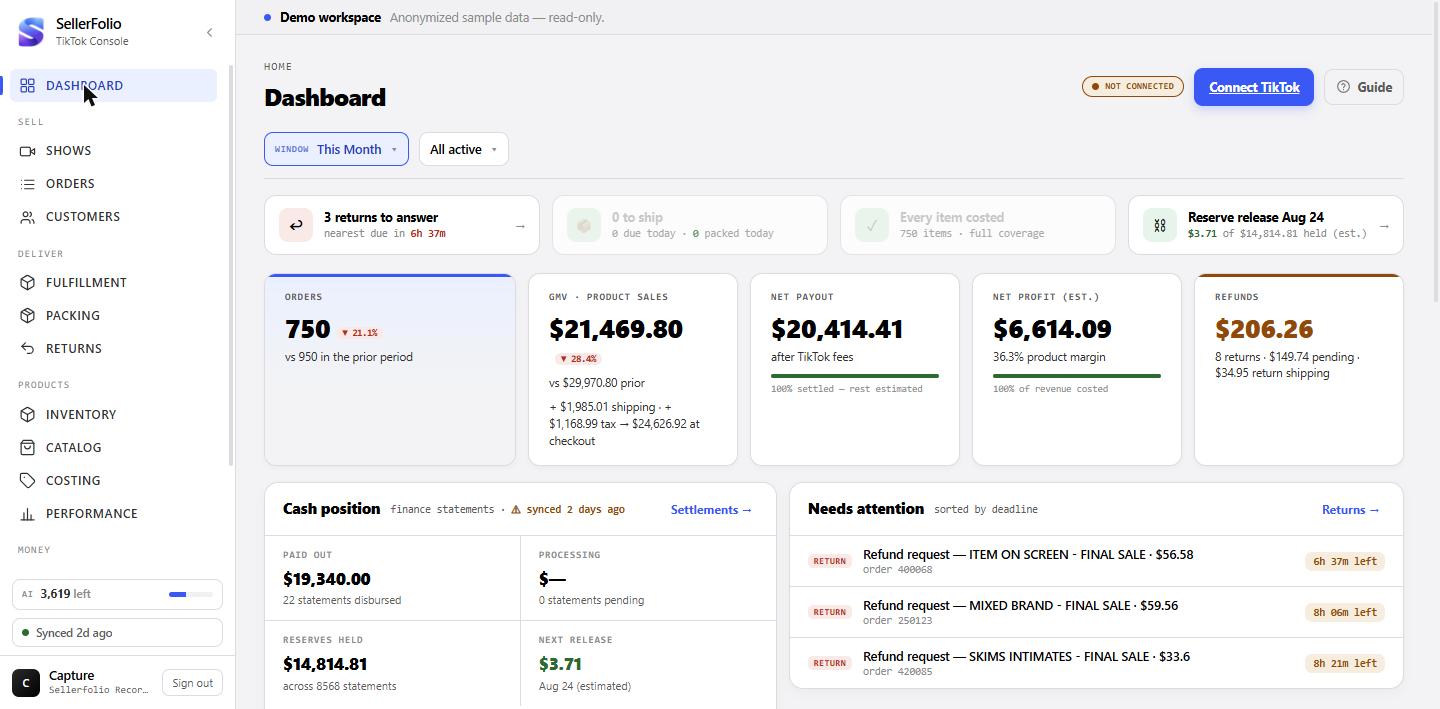
Four questions, top to bottom:
- The action strip — what has a deadline on it right now? (Part 2)
- The five tiles — what did this period sell and earn? (Part 3)
- Cash position and Needs attention — what money has actually moved, and what is still ticking? (Part 4)
- Shop performance, Recent orders, the trust strip — how healthy is the shop, what just came in, and how much of the above is settled fact? (Part 5)
The reference table at the end has one row per figure: what it sums, which clock it is on, and the screen that answers it properly.
Figures on this page are dated three different ways, and that is deliberate — each answers a different question:
- Order date — when the buyer placed the order. Drives the five tiles, the recent-orders table and the trust strip.
- Statement date — the calendar month TikTok itself puts on a statement. Drives Paid out and Processing in Cash position.
- Right now — a live queue with no window at all. Drives the ship-by counts, the held-reserve figures and the Shop performance card.
So changing the timeframe at the top does not move the parcels-to-ship count, the reserve figures, the GMV bars or the Shop performance score. They are not stuck; they were never windowed.
Set the window first
Three controls sit in the header, and two of them silently change most of the page.
The timeframe
This Month, Last Month, Last 7 / 30 / 90 Days, This Year, All Time. It opens on This Month, and This Month means the 1st to right now — not a whole calendar month. There is no custom date range here; Finance and Performance have those.
Everything it moves is dated by order date: the five tiles, the recent orders, the trust strip, the costing card in the action strip, and the returns figures. It also moves Paid out and Processing, but on the statement clock instead — see Part 4.
The status filter
Leave it empty and the page quietly excludes three statuses from every sum: cancelled, refunded, and unpaid. An unpaid checkout carries a full total but the money was never captured, so counting it as sales would be a lie; cancelled and refunded orders are money that left again. Orders on hold are counted — that is paid money awaiting a decision.
The list of statuses you can pick from is built without the filter applied, so cancelled and unpaid always appear as options even though they are hidden by default.
The connection pill
Green Connected with your seller name is the normal state. Three other things it can say, each meaning something different:
- Authorization expires date — TikTok has warned that the shop authorization is running out. Syncs still work today. Re-authorize before that date.
- Deauthorized — reconnect TikTok — the link is broken now. Nothing is syncing; the figures below are as of the last successful sync.
- Not connected — no shop is linked yet.
In the last two cases a Connect / Reconnect TikTok button appears next to the pill.
If a strip appears saying panels failed
The page loads eleven panels independently, so one failure does not blank the screen. If some fail you get a line reading N of 11 panels failed to load — the rest are current, with a Retry. If all of them fail it says the server could not be reached instead.
The action strip
Up to four cards across the top, above the numbers: the work that carries a clock. A card only appears once its data has loaded — an unfetched zero and a real zero look identical on screen, and only one of them means "nothing to do". A card with nothing in it goes green and stops being clickable.
Returns to answer
Counts returns where TikTok is waiting on you to act — not every open return. The small print gives the nearest deadline, or, when nothing is owed, how many returns are open in total. Clicking opens Returns.
Parcels past ship-by / to ship
The whole live ship queue: orders currently awaiting shipment. It ignores your timeframe entirely, which is correct — an order from three weeks ago that still has not shipped is exactly the one you need to see.
When nothing is overdue it reads N to ship, and the line beneath gives how many are due in the next 24 hours plus how many parcels you have packed today. "Packed today" is counted from midnight in your browser's timezone, and it is throughput — parcels packed since midnight — not the number sitting packed in the queue.
Items missing cost
Line items in the selected window with no cost recorded, and — the number that matters — the sale value being excluded from profit because of them. Clicking opens Costing. When it is green and reads Every item costed, the Net profit tile below is measuring the whole window rather than a slice of it.
Reserve release
Money TikTok is holding back, and the soonest date it is expected to come back. Not windowed — it is a live balance. The date is TikTok's own estimate where it gave one, and otherwise the withholding statement plus 30 days; when the whole schedule is inferred the amount is marked (est.). Clicking opens Finance's Cash tab.
The five tiles
All five are on the order clock: they cover orders placed in your window, whatever has happened to the money since.
Orders, and what the ▲▼ chip compares against
A count of orders placed in the window, after the status rules in Part 1. The chip next to it compares against the immediately preceding span of equal length — and for an open-ended window like This Month that means the same number of elapsed days, not a whole prior month. Nineteen days against the previous nineteen days.
GMV · product sales
The headline is merchandise only — the sum of TikTok's own subtotal on each order. It is the figure TikTok calls GMV, and it is the one the ▲▼ chip describes.
The line underneath walks you out to the checkout total: + shipping · + tax → … at checkout. Each of those is a separate sum of TikTok's own field on the order — buyer-paid shipping, sales tax which TikTok collects and remits and which is never your money, and the order's total. Quote the headline when someone asks what you sold; quote the checkout total only when they asked what buyers paid.
Net payout, and the settled bar
What TikTok owes you on the window's orders once its fees come off — added up per order, for the orders that have finance data at all. It is not money that arrived; for that, read Paid out in Cash position.
The little bar beneath is the split between settled and estimated: the share of the finance-covered orders TikTok has actually finalised. A recent window runs low here and climbs over the following days as statements post. Read 60% settled — rest estimated (illustrative) as "this number will still move".
Net profit — the most easily misread tile on the page
Three things about it, all load-bearing:
- It covers only the orders where every item has a cost recorded. An order with one uncosted line contributes nothing. The bar underneath names the excluded sales in dollars — $… uncosted, excluded — rather than blending them in behind a percentage.
- The percentage beside it is product margin: goods profit over the net sales of those same costed orders. It is a markup on merchandise, so it does not include TikTok's cut, and it is not the margin on your whole business.
- (est.) appears when some order's carrier label cost has not been billed yet, or when part of the window is still estimated rather than settled.
If nothing in the window is costed at all, the tile greys out and says add costs in Costing to see profit — which is the honest answer, not a failure.
Refunds
The headline is money that has actually gone back: refunds on returns attached to orders placed in this window, that reached a refunded state. The line under it adds three things — how many returns are attached to this window's orders in total, how much is pending (open requests, which is exposure and not yet a cost), and what you have paid in return shipping.
Cash position and Needs attention
Two cards side by side: money that has really moved, and work still ticking.
Cash position — two windowed figures and two live ones
Paid out and Processing are statement totals for your window, dated by the calendar month TikTok itself puts on the statement — so "July" means the statements TikTok calls July, regardless of where a timestamp falls in your timezone. Paid out is the statements marked paid; Processing is everything else, including statements with no payment status yet.
Reserves held and Next release are a live balance across every reserve lot, and ignore your date filter completely. A withhold and its later release net against each other, so what you see is what is genuinely still held.
The bars along the bottom of the card
Six bars of checkout GMV, drawn over a fixed rolling window of about 120 days regardless of the timeframe you picked — so they are usually the last six weeks. Their height is relative to the tallest of the six, so they show shape, not scale, and the rightmost bar is the current, still-filling period. Hover for the span they cover.
Needs attention
One list mixing the two kinds of work that carry a deadline: returns waiting on your response, and orders whose ship-by is approaching or passed. Sorted by deadline, nearest first, six shown. Anything without a deadline is left out of the list entirely rather than sorted to the top.
The countdown on the right is colour-coded: red under twelve hours or already overdue, amber under a day, green beyond. Those are the same bands the ship queue and the Returns clock use, so a row cannot read amber here and green on the screen it links to.
A row opens the thing it names, on the screen where that thing is actually worked. A Return row opens that return on the Returns screen. A Ship row opens the box at the packing bench, matched on its tracking number — that is where you can see the parcel, its items and its buyer; only an order with no tracking yet falls back to a drawer, which is all a drawer could show it anyway.
The link in the card's header goes to Attention, the full queue. This card is the top six by deadline and it is deliberately narrow: it lists only work whose clock has a date on it. The Attention screen holds the same rows plus the ones with no fixed deadline — a return awaiting your response that TikTok has not put a date on, and lost-package refunds worth checking for a claim — and it is where you can hide a row until its situation changes.
Shop performance, recent orders, and the strip at the bottom
Shop performance
TikTok's own Shop Performance Score, out of 5, with its tier and — where TikTok supplies it — your peer percentile and the top issues dragging the score down. This is TikTok's number over TikTok's own evaluation window (the card says how many days), not anything computed here, so it will not respond to your timeframe.
If the card is not there at all, TikTok did not return a score — usually because the analytics permission has not been granted to the app. That is by design: this card hides rather than blocking the page.
Recent orders
The twelve newest orders in your window and status filter, newest first. Click any row to open the order drawer over the page. The Total column is that order's checkout total — merchandise, shipping and tax together — so it will not add up to the GMV headline above, which is merchandise only.
The Show column names the live it sold on, falling back to the last four characters of the room id when the show has no name yet. The Buyer column shows the TikTok handle above the shipping recipient's name; those routinely differ, and the recipient is the one on the parcel. The year is printed on the date only when it is not the current one.
The trust strip
The last line of the page, and the one that tells you how much of everything above is fact. Three percentages, each with a different denominator — worth knowing, because they are easy to read as the same measurement three times:
- % of orders settled — of the orders that have finance data, how many TikTok has finalised. The rest are TikTok's estimates.
- % of revenue costed — revenue-weighted, not item-weighted, so one expensive uncosted item hurts more than several cheap ones. This is the honest caveat on any profit figure.
- % have finance data — of all orders in the window, how many have any payout figure at all. A fresh window starts low here; orders arrive before their money does.
It closes with when the last sync ran and how many orders are in view, and adds some shipping costs unbilled — margins are estimates whenever a label cost is still outstanding.
Where each figure comes from
One row per figure on the screen: what it counts, which clock it is dated on, and the screen to open when you need the full answer rather than the headline. "Order date" figures move with the timeframe; "statement date" figures move with it on TikTok's calendar; "live" figures ignore it.
| On screen | What it is, and its clock | Open this instead |
|---|---|---|
| Orders | Count of orders placed in the window, excluding cancelled, refunded and unpaid unless you select those statuses. Order date. | Orders |
| ▲▼ chip | Change against the immediately preceding span of equal length. Absent on All Time, and absent when the prior period was zero. Order date. | Performance |
| GMV · product sales | Sum of TikTok's order subtotal — merchandise only, no shipping, no tax. Order date. | Performance |
| + shipping · + tax → at checkout | Three more sums of TikTok's own order fields: buyer-paid shipping, sales tax (collected and remitted by TikTok, never yours), and the order total. Order date. | Finance → Overview |
| Net payout | Per-order payout after TikTok's fees, summed over the window's orders that have finance data. Owed, not received. Order date. | Finance → Profitability |
| % settled (bar) | Share of the finance-covered orders TikTok has finalised; the rest are its estimates. Order date. | Finance → Settlements |
| Net profit | Goods profit plus TikTok's fees over the fully-costed orders, plus realised shipping margin over every finance-synced order whose label cost has posted. Order date. | Finance → Profitability |
| % product margin | Goods profit ÷ net sales of the costed orders. A merchandise markup — excludes fees and shipping. Order date. | Performance |
| $ uncosted, excluded | Sale value of line items with no cost recorded — the money Net profit is not measuring. Order date. | Costing |
| Refunds | Refunds actually paid out on returns against this window's orders; plus the pending exposure and your return-shipping spend. Order date, by order membership. | Returns |
| N returns to answer | Returns filed in the window that still owe a seller response. Return filing date — a different set from the Refunds tile. | Returns |
| N to ship / past ship-by | Orders awaiting shipment right now; overdue means the ship-by has passed. Live queue — not windowed. | Fulfillment |
| N due today | Ship-by falling within the next 24 hours. Live. | Fulfillment |
| N packed today | Parcels packed since midnight in your browser's timezone — throughput, not queue state. Today. | Packing |
| N items missing cost | Line items in the window with no cost recorded. Order date. | Costing |
| Reserve release | Soonest expected release and its amount. Dates are TikTok's estimate, or the withholding statement plus 30 days. Live. | Finance → Cash |
| Paid out | Settlement total of statements marked paid whose statement date falls in the window. Statement date. | Finance → Settlements |
| Processing | Settlement total of the window's statements not yet marked paid, including those with no payment status. Statement date. | Finance → Settlements |
| Reserves held | Net still withheld across every reserve lot, withholds and releases netted. Live — not windowed. | Finance → Cash |
| synced N ago | Last time statement sync wrote anything, shop-wide. Amber past 36 hours: the four cash figures may be stale. Live. | Settings |
| The six bars | Checkout GMV over a fixed rolling window of about 120 days, six buckets, usually weekly. Ignores both the timeframe and the status filter. | Performance |
| Needs attention | Returns filed in the window that carry a response deadline, merged with the most urgent open ship-queue orders; nearest deadline first, six shown. Mixed — see above. | Returns · Fulfillment |
| Shop performance | TikTok's Shop Performance Score over TikTok's own evaluation window. Hidden when TikTok returns nothing. TikTok's window. | TikTok Seller Center |
| Recent orders | The twelve newest orders in the window and status filter. The Total column is the checkout total, not merchandise. Order date. | Orders |
| % of orders settled | Settled ÷ orders that have finance data. Order date. | Finance → Settlements |
| % of revenue costed | Costed sale value ÷ all sale value — revenue-weighted, so a pricey uncosted item counts for more. Order date. | Costing |
| % have finance data | Orders with any payout figure ÷ all orders in the window. Order date. | Finance → Settlements |
Habits worth keeping
Read the action strip before the numbers
The tiles will still be there in an hour. A ship-by deadline will not. The strip is ordered the way it is on purpose.
Check the trust strip before you quote anything
One line at the bottom tells you what share of the page is settled fact. A profit figure from a half-costed window is not a profit figure — it is the profit on the part you have costed, and the tile says so in dollars if you read the bar underneath it.
When two screens disagree, check the clock before you check the maths
Almost every apparent contradiction in this app is a date basis, not an error: order date against statement date, or a return's filing date against the date of the order it was filed against. The reference table above names the clock for every figure here.
Treat the "synced" stamps as part of the numbers
There are two: the one in Cash position for statements, and the one in the trust strip for orders. Either going quiet means a figure has stopped moving for a reason that has nothing to do with your business.
Clear the costing backlog before month end
Every uncosted line makes Net profit measure less of the month. Closing with the costing card green means the figure will still be right when you look back at it.