- Queue — the work. To ship is what needs a label (Part 2–3); In transit is what the carrier has and whether it is still moving (Part 4).
- Delivery — the measurement. How long a parcel takes, split into stages, and which lanes are slow (Part 5–8).
A reference section at the end lists every column, every tracking state, the exact boundaries behind each threshold, and what this screen genuinely cannot see.
The top of the screen
Three controls sit above everything and behave the same on both tabs.
Queue and Delivery are pages, not filters
The two chips under the title navigate to separate pages. That is deliberate: the filter pills further down the queue narrow one list, while these swap the whole screen. They replace the current history entry rather than adding one, so the browser's Back button takes you out of Fulfillment rather than walking backwards through tab switches.
The show filter
Both tabs carry a multi-select of shows; empty means all shows. On the Queue it scopes the list and the cards above it. On Delivery it scopes every figure on the page — the chart, the histogram, the map and the table all come from one request.
Refresh
Refresh starts a full sync from TikTok and waits for it to finish before reloading the queue, so the button stays busy until the numbers it is about to show are the new ones. It is not the tracking poller — that runs on its own schedule (Part 4).
To ship
Everything TikTok is still waiting for you to hand over.
The five cards
To ship is every order awaiting shipment in the current show scope. Label overdue is the ones whose ship-by deadline has already passed and for which no label has been bought yet. Due today is the ones due inside the next 24 hours — it does not include the overdue ones, so the two never double-count. Awaiting pickup is labelled orders the carrier has not taken yet. Late handover is the slice of those whose ship-by has also already gone by — click it to work them in Packing.
Each card names its unit on the line under the number, and all five of these count
orders. A card with nothing to show yet reads — rather than
0: on this row zero is a real and rather good answer, so it must not be how
"still loading" looks.
So a box can be two days on the bench with its ship-by still comfortably ahead — in the pill, not on this card — while an order can be past its ship-by inside a parcel you only marked ready this morning, which is the reverse. They are not even counted in the same units: one parcel often carries several orders. Neither number is a correction of the other, and expecting them to agree will only make one of them look broken. Read this card for how much is late; work Packing's pill to clear the boxes.
Read the ship-by badge
The first column grades the deadline rather than making you subtract dates. Red is Overdue or under twelve hours left; amber is under a day; green is anything further out and counts in days. An order with no deadline at all says No deadline and stays neutral — it is not late, we simply have no clock for it. The exact date sits underneath in small grey type. An order that has only just missed its deadline reads a plain Overdue, because "Overdue 0h" is a contradiction.
Sorting, and the one place it is capped
Sort: ship-by is the default and the honest one — earliest deadline first,
undated orders last. Sort: SKU reorders by seller SKU, numerically aware,
so 84 comes before 184; blank SKUs go last. It is what you want
when picking a shelf rather than chasing a clock.
Clicking a row selects it — it does not open it
Row click and the checkbox both select the order for shipping, because the normal thing to do here is build a batch, not read one order. The order drawer moved to the ⓘ button in the last cell, so batch-selecting never buries you in drawers. Select all takes the whole filtered queue, not just the visible page — it pages through in the background.
Two more links live in that last cell. Shippo… opens the three-step buy-a-label flow for that one order. Parcel → appears only once the order has a tracking number and jumps to its box in Packing.
The chips under a product name
On hold means TikTok's own status is ON_HOLD; the ship dock
excludes the order until the hold clears. A second line in smaller type may show a
brand, item, colour and size read by AI from the show's video receipt — useful for
eyeballing the physical item against what was sold.
Empty and broken look different, always
"Nothing awaiting shipment — you're caught up" is only ever shown after a load that succeeded and returned zero rows, and the screen says so on its face. A failed fetch gets its own box with a Retry and a re-sync button, and it spells out why the distinction matters: orders may still be waiting, and packing against a silent failure would miss them.
Buying labels — the manifest dock
Select one order and a dock slides in from the right. It builds the batch live beside the queue, which stays fully usable behind it.
Three sections, in the order you should read them
Needs attention is packages that could not be quoted — they are not in the buy. Ready to buy is everything priced. Excluded starts collapsed and lists orders that are blocked outright: on hold at TikTok, or with a cancellation pending. The footer states the label count and the total, and refuses to show a total while anything is still quoting.
Same buyer, one label
Orders going to the same recipient are consolidated into one package — one label, one tracking number. Merge all same-buyer does the whole batch at once and estimates the saving; Review individually shows each group first. If a buyer has orders in the queue that you did not select, the dock offers to adopt them, and the queue shows a small +bundle hint on those rows so you can pull them in from either side.
The box and the weight, and where each came from
One box preset applies to the whole batch, chosen in the dock header; a single package can
be bumped to a bigger one. Each package prints its effective box and the weight the label
will actually be bought with, plus a chip saying where each number came from —
weight: TikTok, dims: TikTok, box: manual, or
weight: preset when nothing better is known.
Shipping margin, before you spend
An open package shows what the buyer paid to ship against what the label costs, and the
margin or loss between them. Zero is a real figure — free shipping — and renders as
$0.00; only a genuinely missing figure renders as a dash.
When TikTok refuses to quote a consolidated group
Some merged groups cannot be priced up front. Those packages offer an explicit opt-in to buy
one label at TikTok's default rate instead. It is opt-in because
the cost is not known until the order settles — it turns up later in
Costing's shipping margin. The dock counts how many such labels are in the batch and shows
the total with a +, because the total is a floor rather than the price.
Two smaller states are worth recognising. A package marked reused already has a label: it is counted at $0.00 and never re-bought, only reprinted. An order inside its one-hour buyer-remorse window shows a countdown chip — that is advisory only, and the order ships anyway.
The receipt
After a buy the dock turns into a receipt split into Created, Reused and Skipped — stayed in queue. Skipped rows carry the reason and a button that puts exactly those orders back into a fresh manifest. This is the only place the batch prints as a batch, so the dock refuses to close on Escape while a receipt is on screen, or while a buy or a print job is in flight.
In transit
One row per physical box. The whole point of this list is catching a lost parcel before the buyer opens a dispute.
Five cards, and why the last two are separate
In transit is parcels the carrier actually holds. Stalled is the chase list. No scans is parcels with no carrier scan stored at all. Not checked is parcels our poller has never successfully asked about. Awaiting collection is boxes with a label the carrier has not taken — those are excluded from this queue and the card links across to Packing.
The filter pills
All, Stuck, Failed, Not moving, SLA breach. Stuck and Failed carry counts; a zero count still renders, because on a work list "Stuck 0" is the answer and hiding the control would leave you unable to tell "none" from "not offered". Not moving and SLA breach carry no number rather than one that could disagree with the rows beneath it.
The exact definitions — including which boundary is exclusive — are in the reference section. Two are worth knowing here. Failed needs its own pill because a failed delivery is never stalled: the failure scan is recent by definition, so the chase list structurally cannot contain it, and it is the one state where the buyer certainly does not have their order. Not moving is not "has no scan": TikTok emits scans the moment a label is minted, so a parcel sitting on a shelf for four days still has scans. Only a scan that places the parcel past "In transit" counts as movement.
Reading one row
On the left: a product name, the item count, a bundle chip when the box carries more than one order, the show, the tracking number in full (selectable, with a copy button — it is the string you paste into a carrier site), and the recipient and carrier. In the middle, the journey rail. On the right, the days since the last scan, its verdict colour, and what that scan actually said.
The journey rail
Five stops: Ready · In transit · At destination · Out for delivery · Delivered. The dot is placed from the scan's own code, mapped server-side. The hatched span ahead of the dot is the silence since that scan, drawn to scale against your stall threshold — it reaches the end of the rail exactly when the parcel crosses into being worth chasing. So "how far along" and "how long stuck" are one picture.
- No dot at all means the scan's code could not be placed. No dot beats a wrong dot — the rail's whole value is that where the dot sits can be believed.
- The dot can move backwards. A scan back into a facility after a failed delivery is honest news, and the rail shows where the parcel is, not the furthest it ever got.
- A failed attempt renames its stop to "Delivery failed" rather than just tinting it. A failure sitting under the words "Out for delivery" reads as progress.
- An inferred stop is marked as a guess. When TikTok sends a code we have never seen, its stage is read from the leading digit and rendered as an inference, not a fact.
The verdict on the right
The big number is days since the last scan; its colour is the verdict. Where there is no day count the verdict takes the caption instead, so Tracking off and Just labelled still have somewhere to be said. Every wording and its boundary is in the reference table.
Timeline → opens the order and its full scan history. On a bundled parcel that opens the first of the orders in the box — the bundle chip's tooltip says so, so it is not a surprise. Where we have no order id to open, the row simply does not open rather than requesting a bad one.
Where the scans come from
A background poller asks TikTok about parcels, oldest-checked first, so a backlog clears on its own. It ships on, at fifteen-minute intervals by default, refreshing a batch of parcels each pass; both the interval and the batch size are settings. Orders combined onto one label count as one parcel — they are looked up once and every order on that label gets the result — so a pass usually covers more orders than the batch number suggests.
Delivery performance — before you read a single number
The second tab measures the journey rather than working it. It carries no money at all, on purpose: shipping economics live in Reports → Shipping.
What is in the population
A parcel qualifies if it has a tracking number and a ready-to-ship stamp. Orders sharing a tracking number are rolled into one parcel, and the line under the toolbar states the whole shape of it: N delivered of M parcels · K orders. Durations rest on the delivered ones; the rest are there for weight.
The window filters on the order date — the same clock Reports → Shipping and the P&L use — so "August" means the same order set everywhere in the app.
Why the default window is All Time, and why a narrow one lies
A narrow recent window can only contain parcels that have already arrived. The slow ones are still in flight and therefore invisible, so every duration on this tab reads faster as the window tightens. That is not a subtle effect — a short window can halve an apparent duration outright. The stage did not get faster; the slow half had not landed yet.
How a bundle is measured
Everything on this tab is per parcel, not per order — bundles go to one address, so one parcel is one buyer's wait. Counting per order would let a twenty-order bundle count twenty times, which flatters the result wherever your large bundles are also your fastest parcels.
Where a box's orders disagree about a timestamp, the rule is physical: the box is ready when its last order is ready, and it moves, arrives and is delivered once — so ready takes the latest stamp and every carrier milestone takes the earliest. The one exception is Sale → packed, which is measured per order, because packing is an act performed on an order and a bundle is packed one order at a time.
The stage chart
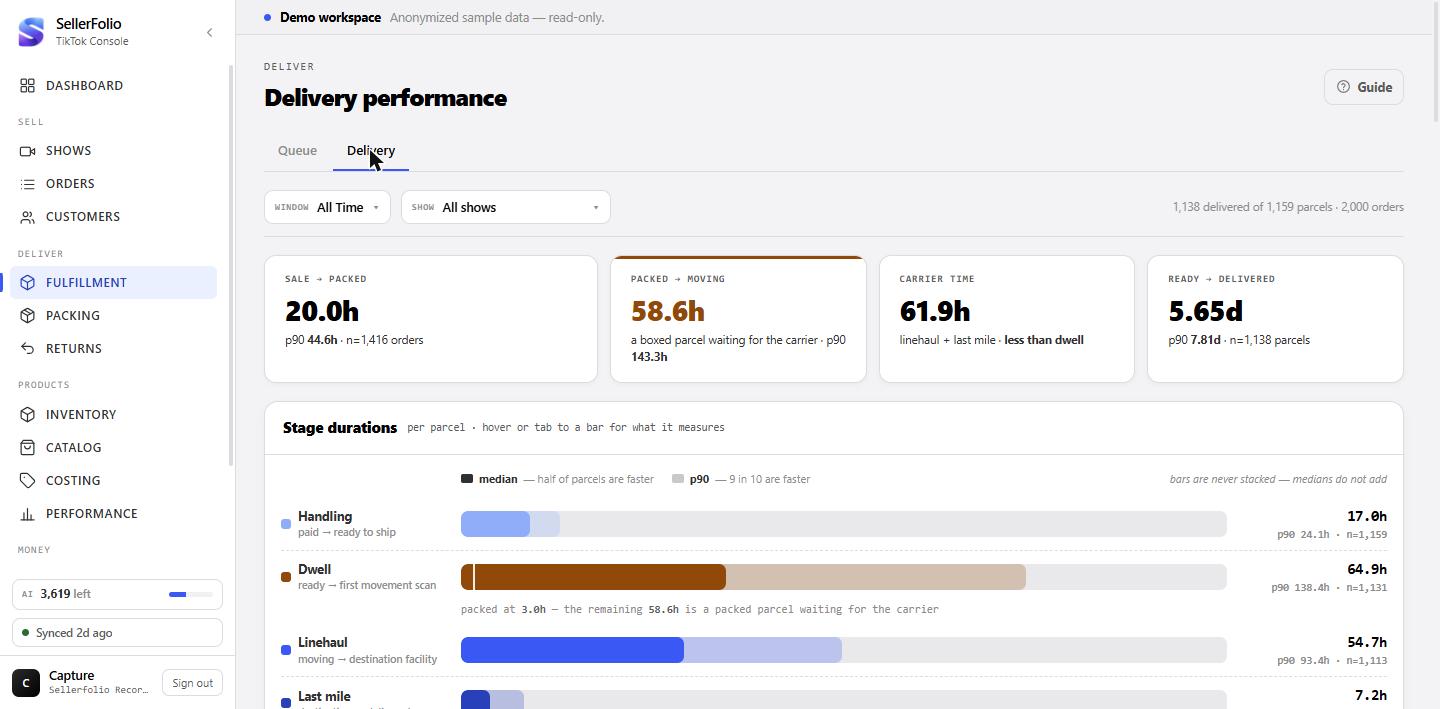
The centrepiece, and the finding the tab was built to surface.
Four KPIs above it
Sale → packed is how long from payment to the parcel being boxed, measured per order. Packed → moving is a boxed parcel waiting for the carrier. Carrier time is the two carrier legs — linehaul and last mile — added together. Ready → delivered is the whole span the buyer experiences, shown in days.
Each of those cards carries three figures rather than one — median, avg and p90, labelled — because a typical order, an average order and a bad-day order are three different questions and quoting only one of them invites the other two to be assumed. Carrier time is the exception, and the box below says why.
It shows no median and no p90, and that absence is deliberate rather than missing work. Neither medians nor percentiles add: the middle of one leg plus the middle of the other is not the middle of the journey, and a summed figure under the word "median" would be a statistic of nothing. A mean is the one summary that does add — the average of two legs really is the average of the pair — so a mean is what this card shows. If you want a middle for the carrier's work, read each leg's own median in the chart below: they are two of the bars.
Two more things the card will tell you when they apply. The legs can cover different numbers of parcels — a box with a linehaul scan need not have a last-mile one — so the card names both counts, and when they differ it is adding across two populations that only mostly overlap. And where there is dwell to compare against, it says whether carrier time is more, less or about the same, which is the comparison that decides whether the delay is yours or theirs. With either leg missing, the whole card reads "—".
Read the bars
Each stage gets one bar: the solid part is that stage's median, the lighter part behind it is its p90. A key above the bars says the same thing in words, and hovering any bar — or tabbing to it — opens a card naming both figures, what each one means, how many parcels it rests on, and anything particular to that row. Every bar in the chart — the four stages, the total, and the sale-to-packed span — is drawn on one shared scale, so you can see at a glance which stage dwarfs the others. Per-bar scaling would hide exactly that. The axis underneath is in hours.
Read the bars against each other rather than against a target. Where dwell rivals or beats the carrier's entire contribution, the time is being lost on your side of the handover — that is the finding this chart exists to surface.
Why n differs per stage
Each bar states its own sample size, and they are not equal — for a real reason. Handling needs only two order timestamps, so it covers every qualifying parcel. Every later stage needs carrier scans, so it covers only what the poller has reached. A stage with a smaller n is not a smaller population of parcels; it is a smaller population of parcels we can measure.
The marker inside the dwell bar
Where a packed stamp exists, dwell carries a marker splitting it into the bench half and the handover half, with a caption naming both. It is a position inside the dwell bar, never a fifth bar and never a stacked segment.
Sale → packed is drawn differently on purpose
It is a span, not a stage: it runs paid → ready → packed and so overlaps the handling and dwell bars above it. That is why it is outlined rather than filled, and why it is never stacked with them — doing so would double-count time already counted twice over. On this book the order's creation and payment stamps are identical, because live sales pay instantly, so there is only one clock to choose.
How long parcels sit
A histogram rather than another median, because the shape is the finding.
Four bands, and what an empty first band means
Parcels are bucketed by dwell into under 24h, 24–48h, 48–96h and 96h+. The header states how many parcels the histogram rests on.
The shape is the point. A distribution with nothing at all in the first band is a drop-off cadence signature rather than a slow carrier — parcels are waiting for a scheduled collection, not crawling. The card says so on its own when it sees that shape.
By destination state
A map and a table over the same rows, both obeying the same floor.
The map
A US choropleth of delivery speed, toggling between median days and p90 days. Darker is slower. The small states that cannot be clicked usefully on a map sit in a tray beside it with the same colours and the same figures. Every state and tray item is reachable by Tab and announced with its numbers, not just on hover.
The map is read-only. Clicking a state does nothing — there is no per-state filter on this report, so a click would have nothing to do. That is a deliberate omission rather than a broken control.
The sufficiency floor
A state only gets a colour once it clears the sufficiency floor — enough
delivered parcels and enough orders behind its figures, both set and applied on the
server. Below the floor it is drawn hatched, and the table greys the row and tags it
thin. A median over a handful of parcels is noise, and painting it would make
the map read as knowledge it does not have.
Delivered and Shipped are two different populations
The table groups its columns for exactly this reason. Under Delivery, Delivered is the median's own sample — parcels the poller followed all the way to a delivered scan, and the count the floor actually gates. Under Volume, Shipped is every parcel addressed to that state in the window, delivered or not.
Something looks wrong
Every parcel says "Tracking off"
The tracking poller is switched off, or has never successfully reached TikTok for this workspace. Nothing on the In transit tab is a verdict in that state, and the screen says so rather than implying every parcel is fine. Turning the poller back on fixes it; the backlog then clears oldest-first over successive passes.
Delivery times suddenly look much better
Check the window. Anything narrower than All Time can only contain parcels that have already arrived, so it skews fast — the tighter the window, the more so. The banner above the KPIs appears for exactly this reason.
A stage's n is far below the parcel count
Everything past handling needs carrier scans. If the poller is young, or off, most parcels have no scans yet and only handling covers the full book. The figures are not wrong; they rest on less.
A search hit shows the wrong product
On the In transit tab, search matches any order in a parcel, but a row can only name one item. The row is the right box; the matching item is another order inside it. The bundle chip on that row is the tell.
A parcel is clearly late but does not appear under Stuck
Three ordinary reasons, in order of likelihood. It has never been polled, so it carries no verdict at all. Its newest scan is a failed delivery — recent by definition, so it can never be stalled; look under Failed. Or it was never collected, in which case it is not in this queue at all — it is a Packing job, counted on the Awaiting collection card.
Every column, state and boundary
What each thing on the screen means and, where a threshold is involved, exactly where the line falls. Boundaries here are stated the way the code applies them.
To ship — columns
| Column | What it holds |
|---|---|
| Ship by | Urgency badge from TikTok's ship-by deadline, with the exact date underneath. Bands in table B. |
| Order | The order id, abbreviated, plus the show it was sold on. |
| Product | The first line item's name and SKU, the item count when more than one, an On hold chip on a genuine TikTok hold, and the AI identity read from the show's video receipt. |
| Buyer | Recipient name and region. A +bundle hint appears here when this buyer already has a package in the dock and the order is unselected, unlabelled and not on hold. |
| Carrier | The shipping provider on the order, if any. |
| Tracking | The tracking number once one exists, plus a Shippo… link that opens the buy-a-label flow for this order. |
| Method | TikTok's delivery option for the order. |
| (last cell) | ⓘ opens the order drawer; Parcel → opens this order's box in Packing, and appears only once it has a tracking number. |
Ship-by urgency bands
| Badge | When | Tone |
|---|---|---|
| Overdue Nh | The deadline passed an hour or more ago. | Red |
| Overdue | The deadline passed less than an hour ago — no hour count, because rounding it would print "Overdue 0h". | Red |
| Nh left | Under 12 hours remain. | Red |
| Nh left | Between 12 and 24 hours remain — the same envelope the Due today card counts. | Amber |
| Nd left | More than 24 hours remain; counted in days. | Green |
| No deadline | TikTok gave no ship-by time for the order. | Neutral |
In transit — the five cards
| Card | Counts | Notes |
|---|---|---|
| In transit | Parcels the carrier holds — shipped, not delivered. | Excludes awaiting-collection boxes entirely. |
| Stalled | Parcels with no update for longer than your stalled threshold. | Amber only when above zero. A permanently flagged zero teaches the eye to skip the one card that must not be skipped. |
| No scans | Parcels with no carrier scan stored at all. | "We asked and nothing came back." |
| Not checked | Parcels the poller has never successfully reached. | "We have not asked." Goes amber once these are at least half the in-transit book, and reads tracking has never run when they are all of it. |
| Awaiting collection | Parcels with a label the carrier has not taken. | Not in this queue — a link to Packing, where they are worked. |
The filter pills, with their exact boundaries
| Pill | Exactly what it lists |
|---|---|
| All | Every parcel actually with the carrier. Awaiting-collection boxes are structurally out of scope for this pill and every other one on this row. |
| Stuck | We have polled this parcel, and its clock has been silent for longer than the stalled threshold — a parcel exactly at the threshold is not yet stuck. The clock runs from the last carrier scan; with no scan at all it runs from the ready-to-ship stamp, not from the sale. An unpolled parcel is never stuck. |
| Failed | The parcel's newest scan is a failed-delivery code. Joined on the newest scan specifically, so a failure since followed by a real scan stops flagging — a redelivery is exactly that, and it is the common case. |
| Not moving | The parcel has a ready-to-ship stamp, has never carried a scan placing it at "In transit" or later, and has been waiting longer than this workspace's own dwell p90 — the same p90 the stage chart draws. Where that p90 cannot be computed yet, it falls back to 48 hours. Per workspace, not global: dwell p90 varies enormously between shops, so one shared cut would be wrong for most of them. |
| SLA breach | TikTok's own ship-by or delivery deadline has already passed on any order in the parcel. Since only undelivered parcels are in this queue, a passed deadline here is a breach by construction. Worth an alert, never a metric — it fires on a tiny fraction of orders. |
The verdict on a parcel row
Checked in this order; the first that applies wins.
| Reads | Means | Tone |
|---|---|---|
| Tracking off | Never polled, and nothing in this scope ever has been. Names the cause rather than leaving you wondering what you did wrong. | Grey |
| Not checked yet | Never polled, but others here have been — this one is simply next in the queue. | Grey |
| Stuck Nd | Past the stalled threshold. The only red state, and the one row asking for action. | Red |
| Never moved | Stalled with no scan ever recorded. | Red |
| Just labelled | Not flagged and never scanned — a fresh label sits here for hours. | Neutral |
| No update Nd | Three or more days silent, but short of the stalled threshold. Amber, not red: a parcel can legitimately sit unscanned over a weekend. | Amber |
| Moved today / Moved Nd ago | Scanned recently. Nothing to do. | Green |
The journey rail's five stops
Positions come from TikTok's own scan codes, which are hierarchical — the leading digit is the stage. Carriers draw from the same small set of codes, so there is one mapper rather than one per carrier.
| Stop | Code family | What the scans say |
|---|---|---|
| Ready | 1xxxx, 2xxxx |
Order created; packed and ready for pickup; package details received by the carrier. These are minted with the label — they are not movement. |
| In transit | 3xxxx |
Arrived at / departed a carrier or partner facility; in transit to the next facility. The first of these is what "moved" means everywhere on this screen. |
| At destination | 40101 |
Arrived at the destination facility. |
| Out for delivery | 40501 |
Out for delivery. |
| Delivery failed | 40601, 41504 |
Undeliverable, or left at a pickup location. Sits at the stop it interrupted, flagged — never further along. Rare, and the ones that cost money. |
| Delivered | 5xxxx |
Delivered — front door, front desk, reception. |
| (inferred) | anything unseen | Placed by its leading digit and marked as a guess. An unseen 4 deliberately stops at "At destination" rather than claiming out-for-delivery — over-promising there is the error a buyer would catch you on. Codes past the delivered band resolve to Delivered, since such a parcel has certainly stopped moving. |
Delivery stages — the exact spans
| Stage | From → to | Needs |
|---|---|---|
| Handling | Paid → ready to ship | Two order timestamps only — so it covers the most parcels. |
| Dwell | Ready to ship → first movement scan | A scan placing the parcel at "In transit" or later. |
| Linehaul | First movement scan → destination | Destination is set by the first scan reaching either "At destination" or "Out for delivery" — a parcel out for delivery has certainly arrived in town, and many parcels never emit the destination-facility code at all. |
| Last mile | Destination → delivered | A delivered scan. |
| Ready → delivered | Ready to ship → delivered | Measured directly, end to end. Never the stages summed. |
| Sale → packed | Paid → packed | A span, not a stage — it crosses the ready-to-ship boundary and overlaps handling and dwell. Measured per order. |
| Ready → packed (marker) | Ready to ship → packed | The bench half of dwell. Needs a packed stamp; parcels without one are excluded from both halves. |
| Packed → moving | Packed → first movement scan | The handover half of dwell. Same exclusion. |
Dwell bands, and the by-state columns
| Band | Dwell falls |
|---|---|
| < 24h | Under 24 hours. |
| 24 – 48h | 24 up to but not including 48 hours. |
| 48 – 96h | 48 up to but not including 96 hours. |
| 96h + | 96 hours or more. |
| Column | Population |
|---|---|
| Delivered | Parcels to that state with both a ready stamp and a delivered scan — the sample every day figure beside it rests on, and the count the floor gates. |
| Min / Median / p90 / Max | Ready → delivered, in days, over that Delivered sample. |
| Shipped | Every parcel addressed to that state in the window, delivered or not. Here for weight — is this lane big? — never as a denominator. |
| Orders | Orders inside those parcels. Also weight only, and the second half of the sufficiency floor. |
thin chip |
The row is under the sufficiency floor — too few delivered parcels, or too few orders, or both. Figures stay visible but greyed, and the state is hatched on the map. The chip names no number: the floor is set and applied on the server, and the screen is told only whether a state clears it. |
Rows are ordered by Shipped, largest lane first.
What this screen cannot see
Gaps the code documents deliberately. None of these is a bug, and each is here so you do not go looking for an answer the screen does not hold.
| Not available | Why |
|---|---|
| Any money figure on the Delivery tab | Deliberate. This tab is time-only; shipping economics live in Reports → Shipping, and a test asserts the absence so it stays a decision rather than drifting into an oversight. |
| Filtering the Delivery tab to one state | The report takes a window and a show scope, and nothing else — so clicking the map has nothing to do. The map is read-only by design rather than by accident. |
| A median or a p90 for Carrier time | Withheld on purpose, not missing. That card adds two legs, and neither medians nor percentiles add — a summed one would be a statistic of nothing. Each leg's own median and p90 are in the chart below it. |
| Dwell for a parcel with no packed stamp | Excluded from both halves of the split. Scoring it zero would drag the bench half to nothing and manufacture the conclusion the split exists to test. |
| Any figure for a parcel with no ready-to-ship stamp, or no tracking number | Every stage hangs off the ready stamp, and a blank tracking number would merge unrelated parcels into one. Such orders are excluded from the Delivery tab entirely. |
| A state for a parcel with no destination state | Not a lane. It appears in the overall figures but in neither the map nor the table. |
| Awaiting-collection boxes in the In transit queue or any of its filters | Structurally out of scope, not merely absent from today's results. A box TikTok has not marked collected was never expected to move, so it cannot be "not moving" by this definition. Whether such a box that has sat too long deserves its own queue is an open question, not one these filters answer. |
| A carrier's own wording on most scans | TikTok's primary tracking response omits the friendly action name on the overwhelming majority of scans, so the timeline falls back to the scan's description, then its raw code, then a plain "Carrier scan". The numeric code is always present, which is why the rail maps on the code and never on the name. |
| Richer scan data for most parcels | TikTok's newer tracking endpoint serves only platform-carrier parcels — a minority of a typical in-flight fleet — and answers "order not in supported scope" for the rest. That is a statement about scope, not a failure, so the older endpoint with full coverage is the primary source and the newer one is enrichment where it works. |
| Anything this screen writes back to TikTok | Both tabs are read-only over tracking data. The only things that spend or change anything are buying a label and marking an order packed — and the packed marker lives on Packing. |
Habits worth keeping
Check "Not checked" before you trust anything else on In transit
If it is most of the book, the screen is describing your own coverage rather than the carriers'. Nothing below it is a verdict until the poller has caught up.
Work Stuck and Failed as two separate lists
They cannot overlap by construction, and Failed is the one where the buyer certainly does not have their order. Clearing only the chase list leaves the worse cases untouched.
Merge before you buy, not after
Consolidation is only available while the manifest is being built. Once labels are bought the saving is gone, and a buyer who could have had one box has three tracking numbers to watch.
Read Delivery on All Time first, then narrow
Every narrower window flatters you, and the amount it flatters you by is not predictable. Establish the baseline, then look at a period against it.
Fix dwell before arguing with a carrier
On this book dwell is over half the journey and larger than linehaul and last mile put together — and almost all of it is a parcel already in a box, waiting to be collected. It is also the only stage you control.