Only orders TikTok has moved to awaiting collection — the label is made and the tracking number exists. Buying the label happens earlier, on Fulfillment, before an order ever reaches this screen.
One row is one physical parcel, which means one tracking number. A parcel can hold several orders, and those orders can come from several different shows — the row says so when it does.
Packing needs permission to view fulfillment & packing. A packer account holds three permissions and no more: view fulfillment & packing, buy & print shipping labels, and view orders. In practice that means:
- A packer sees Orders, Fulfillment and Packing in the menu and nothing else — no Dashboard, no Finance, no Returns, no Settings.
- Logging in lands them straight on Packing.
- They can open an order from a parcel, but every money field on it comes back blank — the finance mask strips prices, fees and totals for anyone without permission to see financial figures.
- Packer credentials are owner-managed: there is no self-service password change.
The queue, and how to read one row
Set your scope once at the start of a run, then read rows.
Pick your shows, then search inside them
The show control at the top right is a multi-select: leave it on All shows, or tick the one or two you are packing today. The search box next to it matches a parcel by tracking number, the name on the label, the order number, a product name, or a seller SKU. It searches the whole queue, not just what happens to be on screen, and it fires a moment after you stop typing.
The run strip: Labeled, Started, Packed
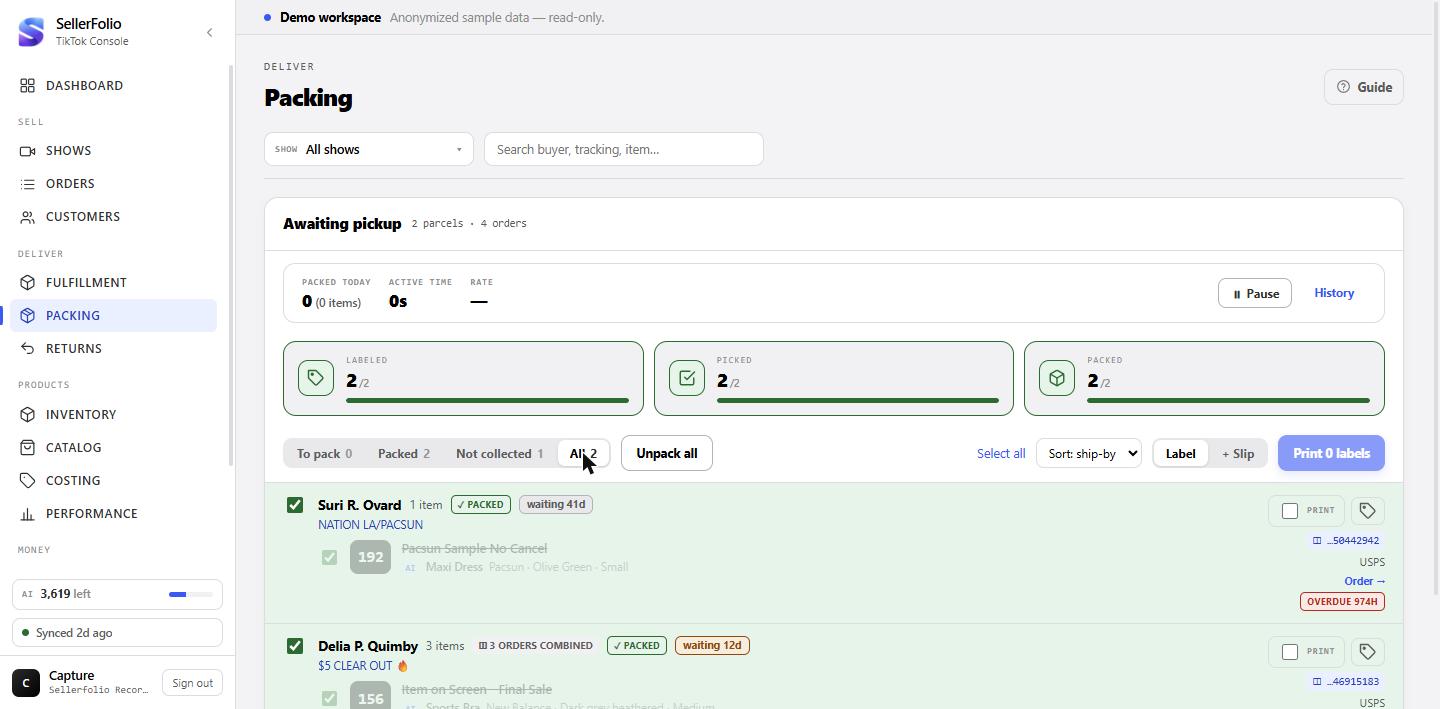
Three counters under the header, and they describe the whole queue in your show scope — they do not move when you search, so they can be trusted as progress for the run rather than for the screenful.
- Labeled — parcels that have a tracking number. Anything short here is a package TikTok has not given us a tracking number for yet.
- Started — parcels with at least one order ticked.
- Packed — parcels where every order is ticked.
Started and Packed read the same tick — the difference is at least one against every — so they can only disagree on a parcel that holds more than one order. A single-order parcel moves both the moment you tick it; a combined one sits in Started until its last item is ticked. Nothing here records picking items off a shelf: there is no scan and no separate action, so read Started as boxes opened but not finished.
The strip disappears entirely if the queue fails to load, rather than showing you
0/0 — an untouched-looking run and an unknown one are different things.
One row, left to right
The tick box on the far left packs the whole parcel at once. Then the name on the label, the piece count, and any badges the box has earned. Clicking anywhere else on the row opens the parcel.
- The name is the recipient on the shipping label, not the TikTok
handle. The handle is shown inside the parcel, prefixed with
@. - ◫ N shows combined — the box holds items sold on different broadcasts. ◫ N orders combined — several orders, one show, one box.
- ✓ packed, or 2/3 when the parcel is part-done.
- waiting Nd — this box was marked ready to ship N days ago and is still here. See step 05.
- N returns · watch — this buyer is on the return watchlist. It is a fact, not a verdict: what extra care to take is your call, and a buyer who returns things is usually a good customer with a fit problem.
On the right: the print controls (Part 3), the last eight digits of the tracking number, the carrier, a link into the order or the parcel, and the deadline chip.
The deadline chip
Far right of the row, showing the earliest ship-by deadline across the orders in the box. It reads Overdue Nh when the deadline has passed — just Overdue in the first hour, since "Overdue 0h" would be a contradiction — Nh left in red under twelve hours, Nh left in amber under a day, and Nd left in green beyond that. A parcel with no chip at all is one TikTok gave no deadline for — not one that is safe to ignore.
The four filters, and what "Not collected" really means
To pack is the default and the one you work from. Packed is your finished pile. All is everything.
Not collected (N) is the one worth understanding. A parcel lands here when its ship-by has passed and the carrier still has not taken it. That is TikTok's own deadline — the one your shop is measured against — so everything in this filter is genuinely late, however recently you labelled it. This filter cuts across packed and unpacked deliberately: a fully packed box still sitting on the floor is exactly the case worth seeing.
Working a parcel
Two speeds: tick the row, or open the box and tick the items.
The fast path — tick the row
The checkbox on the left of a row marks every order in that parcel packed in one click. Click it again and the parcel goes back to unpacked. The row dims, picks up a ✓ packed badge, and — with the default To pack filter on — drops out of the list.
The careful path — open the parcel
Click the row anywhere except a checkbox or a button. The parcel drawer opens with a Pick list: SKU first and large, because the SKU is what you read off the shelf, then the product name, the show it sold on, and a link to the order. Click a line to tick it; the counter in the block heading tracks N of M checked.
The Mark packed button in the drawer header does the whole box at once. Close drawer when all items packed — the checkbox at the top — closes the drawer half a second after the last tick so you can go straight to the next box. That preference is remembered in your browser, so set it once.
Mark all packed — read the filter first
The button acts on everything the current filter is showing, not on the whole queue. Under To pack that is every unpacked parcel on screen; under All it is everything loaded. Once all the visible parcels are packed the same button flips to Unpack all, which is your undo.
If a tick does not stick
Ticks apply on screen immediately and are sent to the server behind you. If that send fails — a dropped connection, a laptop that slept — the screen keeps showing the tick rather than snatching it back mid-run. So the one way to confirm what was actually saved is to reload the page: what comes back is what the server holds.
Printing the paper
Nothing here buys anything. It re-fetches labels TikTok has already issued.
Stage a batch
Each row has a Print checkbox on its right. Tick the parcels you want, or use Select all in the toolbar — which selects everything the current filter shows, and turns into Select none once it has. The button at the end of the toolbar counts what you staged: Print 12 labels.
Sort changes the order the labels come out in, which is the order you will work the pile in afterwards: ship-by (the default, most urgent first), SKU, show, or buyer.
Label, or Label + Slip
The two-button toggle picks what the PDF contains: just the shipping label, or the label and the packing slip together. It applies to the batch button and to the single-parcel print icon alike, so set it before you print.
Press print, then read the line underneath
Every selected parcel's label is fetched, merged into one PDF in the order you sorted, and opened in a new browser tab. Your browser's PDF viewer is where you actually press print — which is why the message says Opened, not printed.
A combined parcel produces one label, not one per order, so the number in the message can legitimately be smaller than the number of orders involved.
One parcel, right now
The small label icon on a row prints that parcel alone, without touching your staged batch; it spins while it works. The same button lives in the parcel drawer as Print label. Both re-fetch the purchased TikTok label — press either as many times as you need.
Cancelled items — the pull list
One chip in the toolbar, and the sheet you tape to the bench.
The Cancelled chip, and what its number counts
The chip appears when anything in your show scope has been cancelled. What it counts depends on how urgent the news is:
- N to pull, highlighted — a cancelled item is still inside a parcel that is still in this queue. The box may be on your bench right now. This is the only state that asks for physical work.
- N this week — nothing to pull; these are cancels from the last seven days, for confirmation.
- N all time — the fallback when neither of the above applies.
The chip is the summons, not the list: the drawer behind it always shows everything cancelled in your show scope, whichever number the chip is displaying. It also ignores your search box on purpose — searching for one SKU should not change what you have been told to pull.
Inside: SKU first, on-bench first
Open the chip and the filter box is already focused, because you normally arrive holding an item and asking one question: is this one cancelled? Type the SKU. Rows are led by the SKU at bench size, grouped by show, with anything still in a parcel sorted to the top and flagged ⚠ still in a parcel — pull it.
Print the "Do not pack" sheet
Print opens a plain sheet in its own window — SKU-led, grouped by show, with anything still in a parcel called out in red — meant to be taped to the bench. Copy list puts the same thing on your clipboard for a message. If a filter is active the sheet says so in its title, so a sheet listing one item never pretends to be the whole scope.
There is no shelf or bin location printed, because the app does not hold one. The sheet lists what identifies the item — product, SKU, buyer — and does not invent a place to find it.
The packing timer
It runs off your ticks alone — there is no start button. Breaks are the only thing it stores.
The strip above the queue
Packed today counts parcels, with pieces in brackets. A parcel counts once, at the moment its last order is ticked. Active time is hands-on time with recorded breaks removed. Rate is packages per hour and seconds per package. On the right, last pack Nm ago ticks live.
A dash instead of a rate is not a failure — see step 08 for the bulk case, and step 19 for the day-level version of the same honesty.
Pause, and "Still packing?"
⏸ Pause stops the clock; ▶ Resume starts it. You do not have to remember the second one: packing anything ends an open pause automatically, because packing is proof you are back.
If you go quiet for longer than the idle threshold, a Still packing? prompt appears with a countdown — sixty seconds by default. Answer I'm still packing (or click outside the prompt) and nothing is recorded: the gap keeps counting as work. Answer Taking a break, or ignore it until the countdown runs out, and the gap from your last pack until now is stored as a break and excluded from active time.
History, and why some days are greyed out
History opens the day list, a rate trend, and a shift bar per day. Click a day to see it split into sessions with the breaks between them — a break longer than thirty minutes starts a new session, shorter ones stay inside the current one. Today is always row one, marked live.
A greyed day carries a one-word reason, and greyed days are left out of the trend line and the average:
- too few — fewer than twenty packages that day. A handful of packs says nothing about pace.
- stalled — more than three minutes of active time per package, which in practice is nearly always a Pause that never got a Resume.
- bulk — packs clustered faster than a human packs.
Today is never greyed and never suppresses its own rate, but it stays out of the average either way — a half-finished day would drag it. The range control defaults to the last ten packing days, accepts a custom range, and caps at 180 days (it says so when it truncates). It deliberately does not remember your last choice between visits.
Scanning at the bench
A second screen for working a stack of labels: one box on screen at a time, no mouse.
Open it, then work from the scanner
Scan in the menu, under Deliver — or Scan station → in the Packing header. It opens saying Waiting for scan, with how many boxes you have packed today and how many are still to pack.
Scan the shipping label on the box in your hands and that parcel fills the screen: who it
is going to, and every item that belongs in it. Fill the box, then press
Space — the whole parcel is marked packed, and the screen goes back to
waiting for the next label. That is the whole loop.
Space— pack the box on screen.Esc— leave it unpacked and go back to waiting.- Click an item to tick it off. Ticking the last one packs the box, exactly as Space does.
Ticking is optional and mostly earns its place on a box holding several orders, where it keeps your place. On a single-item box, Space is faster.
Reading the box on screen
The big number is the ZIP, with the state beside it. That is the pair to check against the label in your hand: TikTok now withholds the buyer's name on a large share of orders, and where it does, the screen says so instead of printing asterisks. The @nickname beside it is never withheld.
The small word underneath is whatever TikTok sent as the town — and it is frequently the county rather than the town, so it can honestly disagree with the label. Treat it as a hint. The ZIP is the one that always matches.
Above the items, a box that already holds a cancelled item shows Pull before sealing with the item named. Take it out before the box closes. Re-scanning a box you have already packed opens it marked Already packed and offers to unpack it — it will never quietly pack it twice.
When a label does not find a box
Not in the packing queue usually means the parcel has not reached us yet rather than that the box is wrong — labels bought on TikTok's own site take a few minutes to arrive here. Press Try again in a moment. If it keeps missing, check the label belongs to this shop and look the buyer up on the Packing queue, which will tell you if their order is sitting at an earlier stage.
If the barcode will not read, type the last digits of the tracking number into the box on the waiting screen and press Enter. Four digits is the minimum, and if those digits fit more than one parcel the screen lists them by destination and asks for more rather than guessing.
Every state, every control
The three tables to check when something on the row does not look familiar.
What a row can be telling you
| What you see | Where | What it means |
|---|---|---|
| Queued | Parcel drawer | No item in the box has been ticked yet. |
| Picking | Parcel drawer | Some but not all of the box's orders are ticked. On the queue this shows as a 2/3 badge. |
| ✓ packed / Packed | Row, drawer | Every order in the parcel is ticked. The row dims and leaves the To pack filter. |
| waiting Nd | Row | Past its ship-by and still here — the carrier never took it, or it never left the bench. N is how many days the box has been waiting, which is not the same as how late it is. |
| waiting Nd, greyed | Row, under "All" | Over a month old. Reconcile it rather than packing it — it is deliberately not in the Not collected count. |
| Overdue Nh / Overdue | Row, far right | The ship-by deadline has already passed. The hour count is dropped in the first hour, where it would round to zero. |
| Nh left (red / amber) | Row, far right | Under twelve hours to the deadline, or under one day. |
| Nd left (green) | Row, far right | More than a day of slack. |
| no deadline chip | Row, far right | TikTok gave no ship-by deadline for this order. |
| ◫ N shows combined | Row | Items from different broadcasts in one box — different shelves, one parcel. |
| ◫ N orders combined | Row | Several orders from one show in one box. |
| N returns · watch | Row | Lifetime returns for this buyer. A flag to take care, not a judgement. |
| AI grey line | Row, parcel drawer | Brand / product / colour / size read from the order's video receipt, to check the physical item against. |
| ⚠ still in a parcel — pull it | Cancelled drawer | A cancelled item whose package is still in this queue. Open the box and take it out before it seals. |
Every control, and what it actually changes
Only the first four rows write anything at all. Nothing in this table spends money.
| Control | What it writes | Doing it twice |
|---|---|---|
| Row checkbox | A packed timestamp on every order in that parcel. | Un-packs it. The parcel drops out of today's count. |
| Item checkbox / clicking an item in the drawer | A packed timestamp on that one order. | Un-ticks that order. The parcel falls back to part-packed. |
| Mark all packed | A packed timestamp on every order in every parcel the current filter is showing. | The button becomes Unpack all, which clears them again. |
| Pause / the break prompt | A break, which is excluded from active time. | Resume, or simply pack something — that ends an open pause. |
| Print N labels · label icon · Print label | Nothing. It fetches the label TikTok already issued and merges it into a PDF. | Harmless. Prints the same paper again; postage is never re-bought. |
| Show scope · search · filters · sort | Nothing — all views over the same data. Changing scope or search clears a staged print batch. | Harmless. |
| Copy list · Print (cancelled sheet) | Nothing. Produces text or a printable page from what is on screen. | Harmless. |
Keyboard and clicks
There is no barcode-scanner integration on this screen and no packing shortcut keys — the search and filter boxes are ordinary text fields. What exists is this:
| Do this | And |
|---|---|
| Escape | Closes the parcel, cancelled or order drawer. In the packing history drawer it steps back from a day's detail first, then closes. |
| Browser Back | Closes an open parcel or order drawer — both live in the page address, so a parcel you have open can also be copied out of the address bar and sent to someone. |
| Click a parcel row | Opens the parcel. Checkboxes, the print icon and the order link do not open it. |
| Enter or Space on an item in the parcel drawer | Ticks or un-ticks that item. |
| Click outside a drawer, or the × | Closes it. |
| Click outside the "Still packing?" prompt | Counts as I'm still packing — nothing is recorded. |
| Open the Cancelled drawer | The filter box is focused for you; start typing the SKU straight away. |
When it goes wrong
| What you see | What to do |
|---|---|
| Couldn't load the pickup queue | A load failure, not an empty queue — parcels may still be waiting. Nothing you marked packed was lost. Press Retry. The run strip is hidden while this is showing rather than reporting zeros. |
| Nothing awaiting pickup | A real empty queue for this show scope. You are done. |
| Nothing matches this filter | Parcels loaded, but none of them are in this state. Try All, or clear the search. |
| The header counts more parcels than the list shows | The screen loads the first 400 parcels of a scope and has no page control. Narrow by show, or search, to bring the rest into view. |
| You packed things but the queue is the same size | Expected. Packing is our own mark; parcels leave only when TikTok moves the order on. Use the To pack filter. |
| A tick you made is gone after a reload | The save failed while the screen kept showing it. Re-tick it — the reload told you the truth. |
| Your browser blocked the label window | Allow pop-ups for this site and print again. |
| No labels available | None of the selected parcels had a printable document. Check they still have a tracking number; a very fresh package may not have one yet. |
| Couldn't print (not_connected) or (reconnect_required) | The shop's TikTok connection needs re-authorising. That is an owner job in Settings — no amount of retrying from here will fix it. |
| Active time or Rate shows — | Packs were stamped faster than a human packs — usually Mark all packed. The count is still right; only the timing is suppressed. |
| A past day says stalled | Almost always a Pause left running. Nothing to fix retrospectively; the day is simply excluded from the trend. |
| The Cancelled chip is a big, unchanging number | That is the all-time count for the shows in scope, shown only when there is nothing to pull and nothing recent. Nothing needs doing. |
Habits worth keeping
Set the show scope once, at the start of a run
It scopes the queue, the run strip and the cancelled list together, and it is the one setting that makes the counters mean your run rather than the whole shop.
Check the Cancelled chip before you seal anything
It only shouts when an item that is genuinely on your bench has been cancelled. Thirty seconds there beats a parcel that has to be chased back.
Tick as you pack, not at the end
The ticks are what the timer is made of. A batch tick at the end still gives the right count, but the day's rate becomes a dash, and a part-packed box with a combined order is exactly the one you want a running record of.
Sweep "Not collected" at the end of the day
Everything in there is a box whose ship-by has already passed while it sat waiting for the carrier. If it is still listed, it is still your problem.